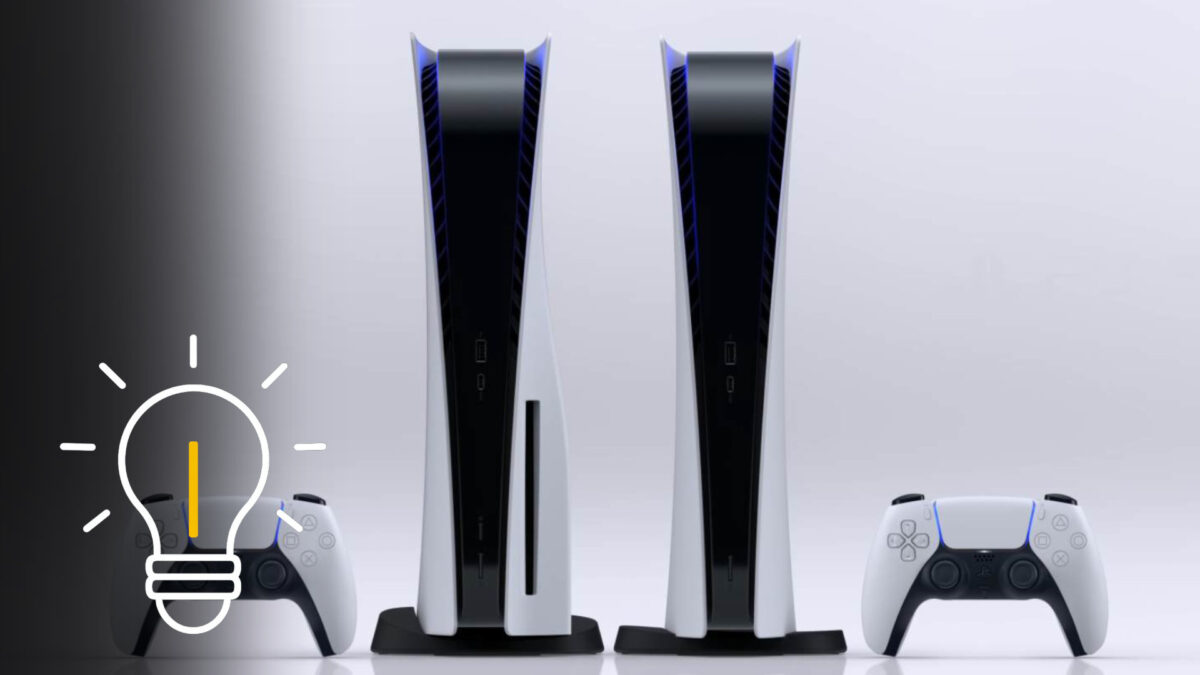

To help you get the most out of your PlayStation 5 right after connecting it, we have put together the best tips for setup and configuration.
Unboxing a new PS5 is a real highlight for many players. However, the first few hours often determine whether your console runs optimally or if you will have to spend time fine-tuning things later. Sony has equipped both the PS5 and the PS5 Pro with many convenience features that are not always perfectly configured out of the box. From image quality and storage management to the DualSense controller, there is more potential in the console than you might expect at first glance. With the following tips, you can make sure your PS5 works exactly the way you want from day one. Whether you are completely new or switching from a PS4.
Take your time to choose the right placement
Before you even connect a single cable, you should think about where your PS5 will be placed. The console needs airflow, and more than many people realize. If you squeeze it into a tight TV cabinet, heat can build up, which can negatively affect performance and noise levels over time. Ideally, place it in an open area with some distance from walls and other devices.
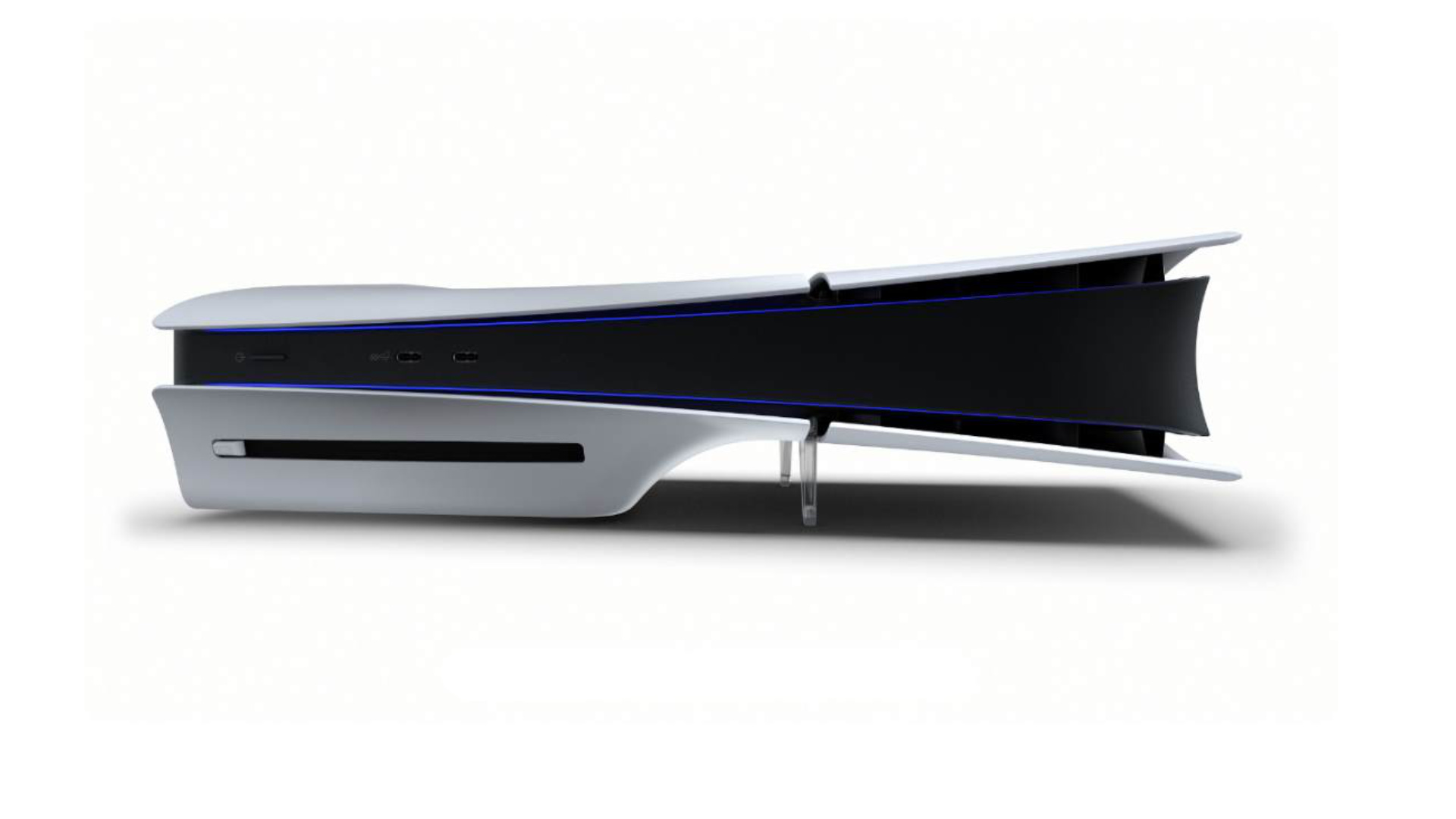
Whether horizontal or vertical, the stand should always be attached. It not only provides stability but also improves airflow. This becomes especially noticeable during longer gaming sessions. At the same time, you can decide whether to lay the console flat or place it upright. With the included feet attached, both options work without any issues.
Do not skip the display and video settings
When starting up for the first time, the PS5 asks you about basic display options, and this is where it pays off to take a closer look. If you are using a 4K TV or monitor, make sure the resolution is actually set to 2160p. HDR is usually enabled automatically, but manual calibration is still recommended. This ensures that black levels and brightness are properly matched to your display.
If your TV supports VRR or 120 Hz, enable these options as well. Many games benefit noticeably from smoother frame rates, especially on the PS5 Pro. The result is less stutter, more responsive gameplay, and a calmer overall image.
Update the system software right away
It may sound trivial, but it is extremely important: run a system update right at the start. Sony continuously improves the PS5, not only in terms of stability, but also features, performance, and accessory support. Many functions, such as controller improvements or new power saving options, are only added via updates.
If you skip this step, you risk unnecessary issues or miss out on features that make everyday use of the PS5 much more comfortable.
- Note: If you have just purchased your PlayStation 5, a system update is usually started automatically during the initial setup. This may take some time, but it is definitely worth it.
Set up PlayStation Network properly
Without PSN, not much works on the PS5, at least if you want to play online, buy games digitally, or use cloud saves. Sign in with your existing account or create a new one right away. With the PlayStation App, you can also log in via smartphone without typing in passwords.
This is also a good time to take a quick look at the security options. Two-factor authentication reliably protects your account from unauthorized access, which is especially important if payment details are stored.
- Note: Many well-known games, including Ghost of Tsushima Legends, require a PSN account even on PC. If you have already played these titles, you usually already have a suitable account.
Transfer old data and games efficiently
If you are switching from a PS4, you do not have to start from scratch. Save files, installed games, and settings can be transferred directly to the PS5. The fastest way is via a shared network connection or a LAN cable. Alternatively, you can use the PlayStation Plus cloud storage.
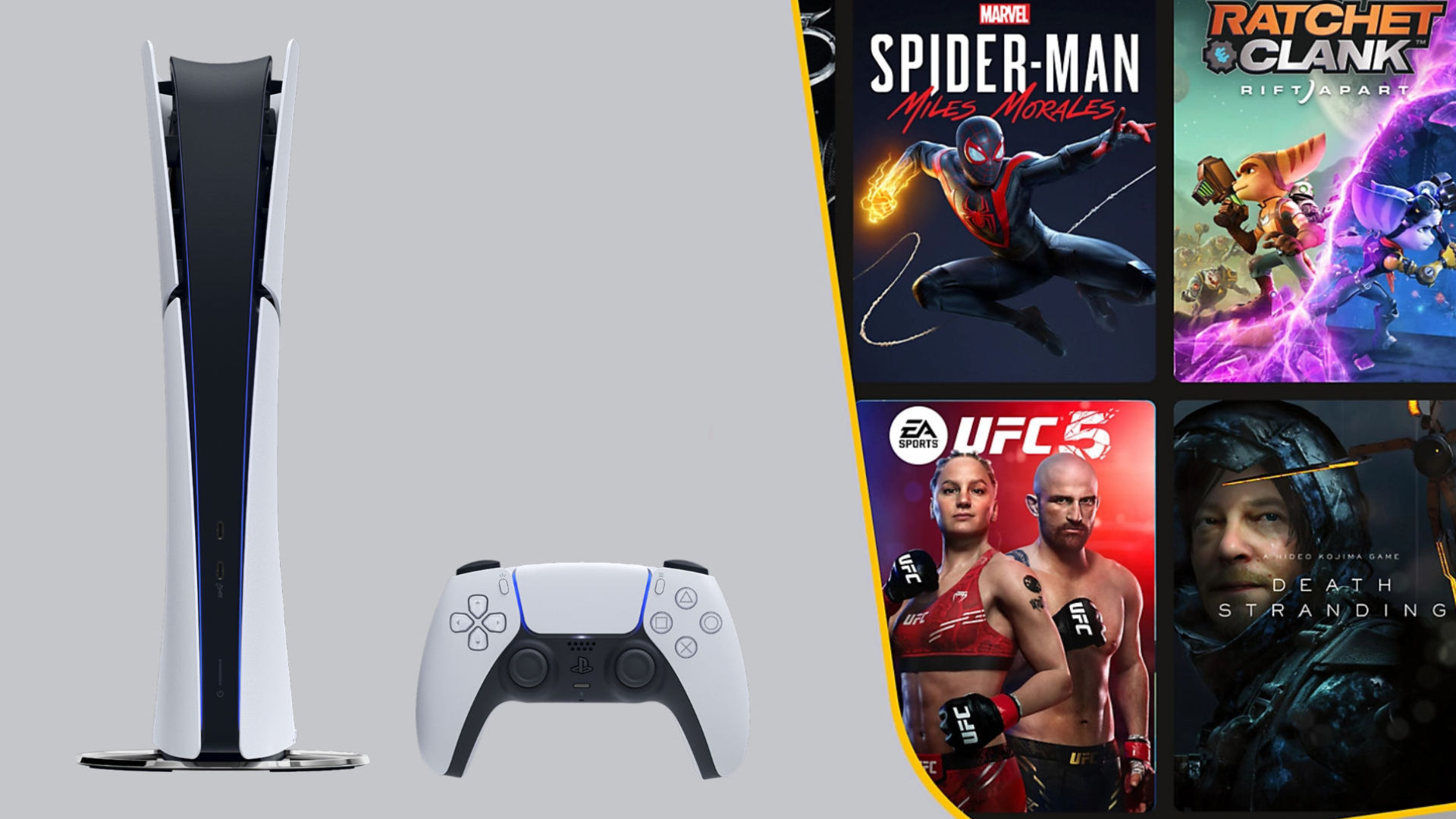
Think ahead about which games you really need. The internal storage of the PS5 is fast but limited. Anything you are not playing right now can always be downloaded again later.
Plan your storage space early
After a few installations at the latest, it becomes clear how quickly the PS5 storage fills up. Modern games can easily take up 100 gigabytes or more. If you play many titles at the same time, an additional internal NVMe SSD is worth considering.
Make sure it meets the speeds recommended by Sony. You can also move PS4 games to an external USB drive, keeping the fast internal storage free for PS5 titles.
Adjust the DualSense controller to your preferences
The DualSense is more than just a controller, but only if it is set up correctly. Adaptive triggers and haptic feedback are impressive, but they can also be tiring. In the settings, you can adjust the intensity or reduce individual effects.
You can also optimize battery life: reduced vibration, dimmed light, and a deactivated microphone mean you will need to charge much less often. A small change with a big impact.
Configure Rest Mode and power options
Rest Mode is extremely convenient, if it is set up correctly. You can decide whether games are allowed to download updates in the background or if controllers continue charging. At the same time, you save energy by enabling automatic power-off timers.
This way, your PS5 is always ready to go without wasting energy or running at full power overnight.