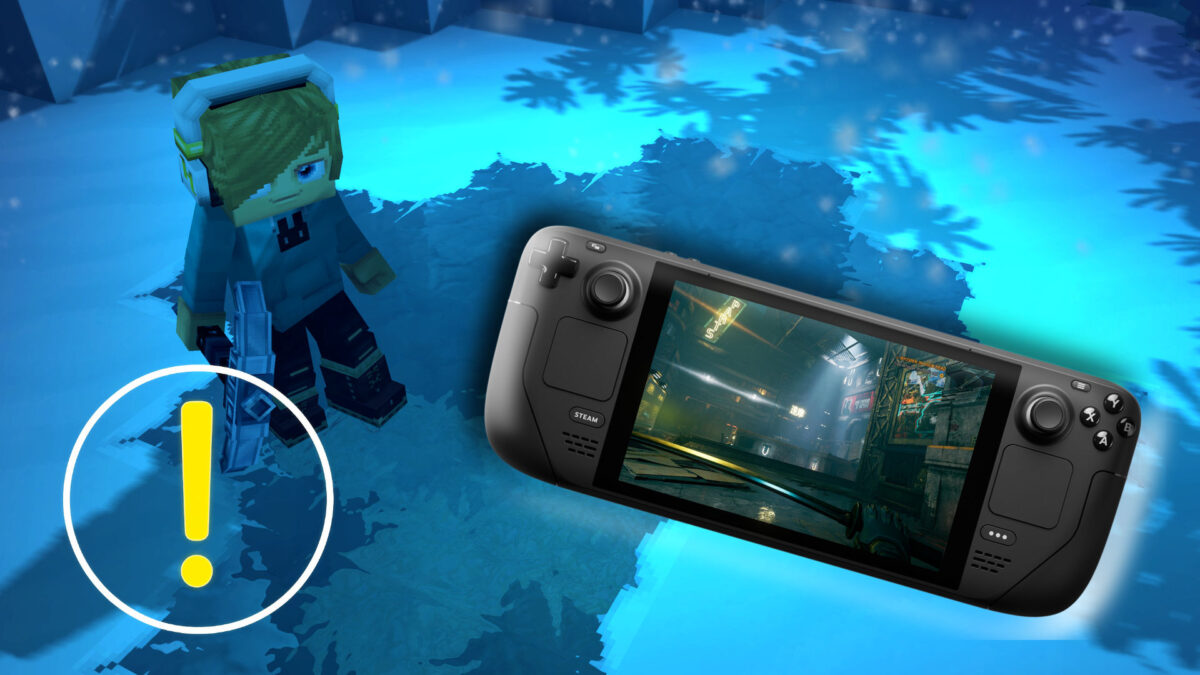

Want to play Hytale on the go? Here’s how to get the game running on the Steam Deck and Windows handhelds like the ROG Ally.
Hytale is not available on Steam, which means it doesn’t have an official “Steam Deck Verified” badge either. Even so, the game can still be played on Valve’s handheld—with a few workarounds. Below, we’ll show you how to run Hytale on the Steam Deck and other handhelds like the ROG Ally, what limitations to expect, and what you should keep in mind.
Hytale on Steam Deck: What You Need to Know
Hytale currently doesn’t run natively through Steam, as it’s distributed exclusively via its own launcher. There’s also no official controller support yet—although the developers have confirmed it’s in the works. If you still want to play Hytale on the Steam Deck, you have two options: the native Linux version or the Windows version via Proton.
Option A: Install the Native Linux Version (Recommended)
The best approach is installing the Linux version via Flatpak. This lets you take advantage of Hytale’s native Linux support—provided your Steam Deck is running a sufficiently up-to-date kernel (at least version 6.15). Here’s how it works:
- Switch your Steam Deck to Desktop Mode.
- Open a web browser and download the official Linux installer from the Hytale website.
- Double-click the downloaded Flatpak file.
- In the Discover Store, select “Install from local bundle.”
- If prompted, set a password (via Discover > System > Users).
- Launch the launcher, sign in with your Hytale account, and download the game.
- After the first launch, exit the game.
- In the Desktop menu, look for the Hytale icon under “All Applications.”
- Use the left trigger to simulate a right mouse click and select “Add to Steam.”
- Return to Gaming Mode—Hytale will now appear in your Steam library.
Kernel Version Notice
You can check your Steam Deck’s kernel version by opening the terminal in Desktop Mode and entering uname -r. If the version is below 6.15, you may run into issues. In that case, updating or switching to a different SteamOS channel may help—or you can try Option B instead.
Option B: Windows Version via Proton
If the native Linux version doesn’t work for you, you can try running the Windows version through Proton. While the developers don’t actively test this setup, the absence of kernel-level anti-cheat means the game still works in many cases.
- Download the official Windows installer from the Hytale website.
- Add it to Steam as a “Non-Steam Game.”
- Enable Proton compatibility in the game’s properties.
- Launch the installer, install the game, and optionally add the game executable as a separate shortcut.
Once again, there’s no native controller support here either—so you’ll need a solid control mapping.
Controls on Steam Deck: How to Make It Work Anyway
Since controller input isn’t officially supported yet, you’ll either need to play with mouse and keyboard or create a custom gamepad layout using Steam Input. The community has already shared several working layouts. Alternatively, playing docked with an external mouse and keyboard is currently the most comfortable option.
Hytale on Windows Handhelds: ROG Ally, Legion Go & More
On Windows-based handhelds like the ASUS ROG Ally or Lenovo Legion Go, getting started is much easier:
- Install the official Windows launcher for Hytale.
- Launch the game just like you would on a regular PC.
Native controller support is missing here as well. However, you can use Steam Input to create a custom layout or rely on your device’s own tools (such as Armoury Crate or Legion Space) to map controls.
Performance Tips for Handhelds
- Use resolutions like 800p or 720p.
- Reduce view distance, as Hytale can be CPU-intensive.
- Set an FPS cap (for example, 40 or 45) to achieve smoother gameplay.